Wireless Bluetooth Keyboard for Apple Devices: Setup & Tips
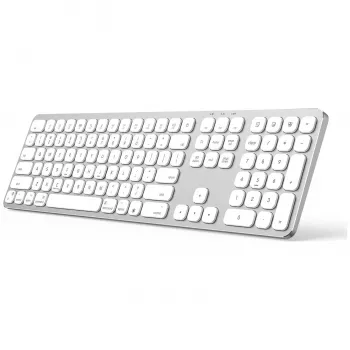
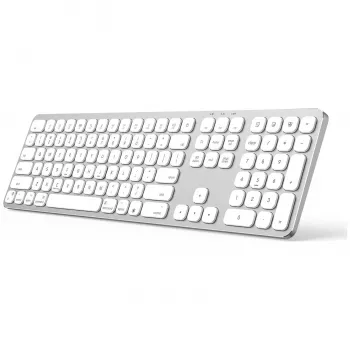
A compact Bluetooth keyboard can turn an iPad into a mini workstation, make note-taking on an iPhone far less frustrating, and keep a Mac setup uncluttered. The best part is how quickly a good keyboard disappears into daily life: it pairs reliably, types comfortably for long sessions, and switches roles seamlessly—school, work, travel, and everything in between.
What Makes a Bluetooth Keyboard Feel “Right” on Apple Devices
Apple devices support external keyboards well, but the day-to-day experience depends on a few details that are easy to overlook before buying.
Layout consistency across Mac, iPad, and iPhone
A familiar layout—especially modifier keys like Command, Option, and Control—reduces mental friction when moving between macOS and iPadOS. Consistent spacing also helps avoid mistypes when you’re switching from a Mac to an iPad on a stand (or typing quickly on an iPhone while traveling).
Stable Bluetooth connection over extreme range
For desk and couch use, the “best” Bluetooth keyboard is usually the one that stays connected, wakes quickly, and doesn’t drop keystrokes. Pairing reliability matters more than maximum advertised range.
Typing comfort (travel, tilt, and key feel)
Key travel, spacing, and even the keyboard’s tilt influence fatigue. A thin travel keyboard can be great in a bag, while a larger footprint often feels more natural for long writing sessions or spreadsheet work.
Portability and power approach
If you’re using an iPad as a laptop replacement, a slim, lightweight board can be the difference between “I’ll bring it” and “I’ll just type on glass.” For power, rechargeable batteries cut waste and simplify routine charging, while replaceable batteries can be convenient if you want instant backups on the road.
Product Overview: Wireless Bluetooth Keyboard for Apple Devices
The Wireless Bluetooth Keyboard for Apple Devices is built for everyday Apple use—Mac, iPad, and iPhone—without adding cable clutter. It’s a practical fit for email, documents, schoolwork, messaging, and remote work where a real keyboard makes typing faster and more accurate.
| Item | Details |
|---|---|
| Product | Wireless Bluetooth Keyboard for Apple Devices |
| Price | $41.82 |
| Availability | In stock |
| Best for | Typing on iPad/iPhone, uncluttered Mac setups, portable work |
| Product page | View details |
Pairing and Setup Tips for Mac, iPad, and iPhone
Most pairing problems come down to power, timing, or a messy previous pairing record. A clean setup takes only a minute or two.
1) Power first, then pair
Charge or power on the keyboard before you start. Low battery can cause “pairing loops” (connect/disconnect cycles) or lag that feels like the device is malfunctioning.
2) Pair from Bluetooth settings
On your Apple device, open Bluetooth settings and select the keyboard when it appears. If the screen shows a pairing code, type it on the keyboard and confirm to finish.
3) Confirm the right layout on iPad
On iPad, verify your keyboard language/layout in Settings so punctuation and special characters match what’s printed on the keys.
4) Fix instability with a “forget and re-pair” reset
If the connection becomes unreliable, remove the keyboard from Bluetooth devices (“Forget This Device”), then pair again in a single, uninterrupted session. Apple’s official steps can help if you need a reference for your specific device: Connect a Bluetooth device with your Mac and Use Bluetooth accessories with your iPad.
Everyday Use: Productivity, Comfort, and Portability
iPad workflows feel more “laptop-like”
For documents, spreadsheets, and longer notes, a physical keyboard removes the constant screen occlusion of on-screen typing and makes common edits faster. Even simple tasks—selecting text, moving the cursor, and writing multi-paragraph content—are more comfortable with real keys.
iPhone typing becomes viable for longer sessions
An iPhone is great for quick replies, but long messages and edits can be slow on the touchscreen. A Bluetooth keyboard helps for journaling, drafting, or making substantial changes on the go. Apple also documents iPhone keyboard behavior and shortcuts here: Use an external keyboard with iPhone.
Mac setups stay clean and flexible
Wireless keyboards reduce cable clutter and make it easier to reposition your workspace—especially if you dock a MacBook or use multiple screens. If you frequently shift between devices, a keyboard that re-pairs smoothly can save time throughout the week.
Comfort and noise in shared spaces
Pay attention to wrist angle and desk height; even a slight tilt or a simple palm support can help during longer typing stretches. If you’re in a classroom, library, or open office, quieter key action is often a better fit than loud, clicky switches.
Compatibility and What to Check Before Buying
Most modern Apple hardware supports Bluetooth keyboards, but a few quick checks can prevent annoying surprises after checkout.
Care, Battery Habits, and Troubleshooting
Other In-Stock Picks That Pair Well With a Mobile Setup
- Foldable Outdoor Travel Trolley Bag – 88L High-Capacity Camping Luggage for carrying bulkier gear when you don’t want everything in a backpack.
- Handheld Steam Cleaner with 6 Accessories – Quick Heat-Up for Chemical-Free Cleaning for quick, chemical-free cleanup in dorms, rentals, or small apartments.
Who This Keyboard Suits Best
FAQ
How do you connect a Bluetooth keyboard to an iPad or iPhone?
Open Settings, turn on Bluetooth, put the keyboard into pairing mode, then select it from the device list. If a code appears on-screen, type it on the keyboard to finish pairing.
Will a Bluetooth keyboard work with both Mac and iPad?
In most cases, yes—Bluetooth keyboards can pair with both macOS and iPadOS. Some models may require re-pairing when you switch devices, while others offer faster switching.
Why does a Bluetooth keyboard keep disconnecting?
The most common causes are low battery, wireless interference, or a corrupted pairing record. Recharge the keyboard, move closer, “forget” the device in Bluetooth settings and pair again, and make sure your OS is up to date.








Leave a comment