Magnetic Capacitive Stylus for iPad & iPhone: Easy Precision
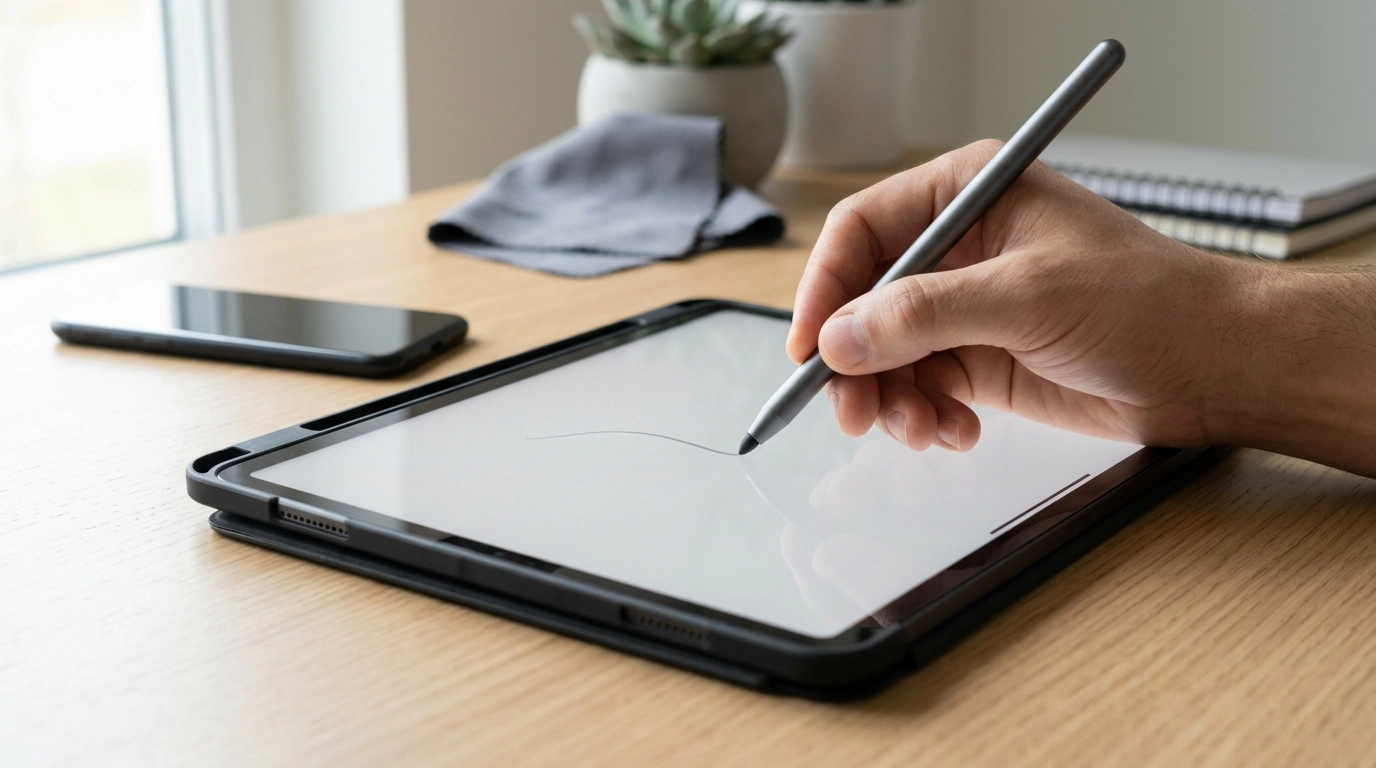
Magnetic Capacitive Stylus Pen for Apple iPad & iPhone: Smooth Writing, Simple Control
A magnetic capacitive stylus is a practical pick for tapping, scrolling, quick notes, and casual sketching on iPad and iPhone—especially when a finger feels imprecise or leaves smudges behind. It’s a simple tool: no pairing, no complex setup, just touch-and-go control that feels closer to a pen than a fingertip. Below is what this type of stylus does best, what to expect on everyday apps, and how to keep it responsive over time.
What a Magnetic Capacitive Stylus Does Best
Capacitive styluses are designed to mimic normal fingertip touch, but with a narrower contact point that can feel more deliberate. That makes them a handy upgrade for daily device use, especially on small UI targets.
- Improves precision for tapping small UI elements like links, checkboxes, spreadsheet cells, and timeline scrubbing handles.
- Creates a cleaner screen by reducing fingerprints during reading, browsing, and gaming.
- Supports quick handwriting for reminders, checklists, and form fields where finger input feels cramped.
- Works as a simple tool for drawing outlines and annotations on screenshots and PDFs.
- Magnetic body helps keep the stylus attached to compatible magnetic surfaces or cases, reducing the chance of misplacing it.
Compatibility and Everyday Expectations
This style of pen is made for capacitive touchscreens, which includes iPhone and iPad displays used for standard touch input. It’s best thought of as a “cleaner, more precise finger,” rather than a full Apple Pencil replacement for pressure-sensitive art or advanced note-taking features.
- Best performance typically comes from a clean, dry screen; oils or moisture can reduce responsiveness.
- If a thick screen protector is installed, slightly firmer contact may be needed for consistent strokes.
- For apps that offer palm rejection or pressure sensitivity features, those functions usually require an active stylus; a capacitive stylus focuses on touch accuracy rather than advanced stylus electronics.
- If handwriting skips, try a slower stroke speed, a slightly different angle, or re-clean the tip and screen.
Capacitive Stylus vs. Active Stylus (Quick Comparison)
| Feature | Capacitive Stylus | Active Stylus |
|---|---|---|
| Works like finger touch | Yes | Usually (plus enhanced features) |
| Battery required | No (typical) | Often yes |
| Palm rejection | Device/app dependent; often limited | Common on supported devices |
| Pressure sensitivity | No | Often yes |
| Best for | Navigation, notes, casual sketching, clean screen | Detailed art, intensive note-taking, pro workflows |
For deeper device-specific guidance, Apple’s official references on stylus support and touch troubleshooting can help: Apple Support: Use Apple Pencil with iPad and Apple Support: If the screen isn’t working on your iPhone or iPad.
Grip, Angle, and Technique for Smoother Writing
Small adjustments in how you hold and move a capacitive stylus can make handwriting and sketching feel noticeably more consistent—especially with screen protectors or textured “paper-like” films.
- Hold the stylus at a comfortable diagonal angle (similar to a pen) rather than straight down to maintain stable contact.
- Use lighter pressure first; increase only as needed to avoid tip drag on matte protectors.
- For handwriting, slow down curves and tight loops; capacitive tips can lose contact on fast micro-movements.
- Rest the side of the hand lightly and adjust if the screen registers accidental touches; some apps allow disabling finger drawing while writing.
- For drawing or highlighting, use longer, continuous strokes instead of many short taps.
Where Magnetic Storage Helps (and Where It Doesn’t)
Magnetic storage is all about reducing “where did I put it?” moments. It’s useful, but it isn’t magic—surfaces, cases, and travel conditions matter.
- Magnetic attachment can keep the stylus close to an iPad on a desk, a magnetic tablet stand, or certain cases with magnetic areas.
- Magnet strength and hold depend on the surface material and any case thickness between the magnet and the metal surface.
- Avoid placing the stylus near magnetic stripe cards or sensitive items inside a tight wallet pocket.
- For travel, pair magnetic storage with a dedicated pouch or organizer to prevent drops when moving around.
Care and Maintenance for Consistent Touch Response
Most “stylus problems” come down to friction, oils, or tiny debris. A quick routine keeps taps crisp and strokes steady.
- Wipe the tip and screen with a soft microfiber cloth; built-up oils are a common cause of missed taps.
- Keep the stylus tip free of grit; tiny particles can scratch screen protectors over time.
- Store away from heat and direct sunlight to reduce material wear.
- If the stylus has a replaceable tip, swap it when strokes feel rough or accuracy drops.
- For long sessions, take short breaks to reduce hand fatigue and maintain steadier lines.
Product Option and Handy Add-Ons
If the goal is straightforward, reliable touch control—more accurate than a fingertip and easier on a clean screen—these in-stock options fit the day-to-day routine.
Quick Picks
| Item | Use case | Price |
|---|---|---|
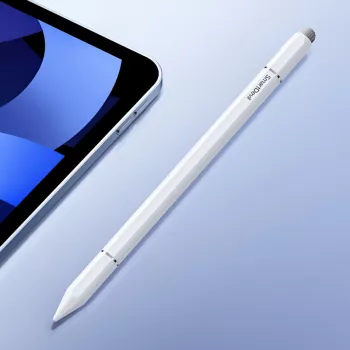
| Magnetic Capacitive Stylus Pen for Apple iPad & iPhone | Accurate tapping, notes, annotations, cleaner screen | $13.01 |
| Compact Storage Box for Apple Pencil Tips | Keeps spare tips organized and easy to find | $3.01 |
| USB Type C to Lightning Fast Charging Cable for Apple iPhone 15/14/13/12 | Fast charging and reliable daily power | $3.01 |
FAQ
Will a capacitive stylus work on both iPad and iPhone?
Yes. A capacitive stylus is designed to work with standard touchscreen input, which includes iPad and iPhone displays. Responsiveness can vary if the screen is oily or if a thick screen protector is installed.
Why does a stylus sometimes skip or miss strokes?
Common causes include an oily screen, moisture, writing too fast, a thick protector, or a worn/dirty tip. Cleaning the screen and tip, changing your writing angle slightly, and slowing down tight curves usually improves consistency.
Does a capacitive stylus support palm rejection?
Typically no—palm rejection is most reliable with active styluses and supported iPads/apps. For capacitive styluses, reducing accidental touches often depends on app settings (like disabling finger drawing) and using a lighter hand-resting position.







Leave a comment